
In this article you can learn about how to access everything that you need on the Chromebook. Such as the Server, team drives and other files. This article will also cover how to use the basics of chrome OS.
After signing into the Chromebook using your GT Google Account, you will get placed on the homescreen.
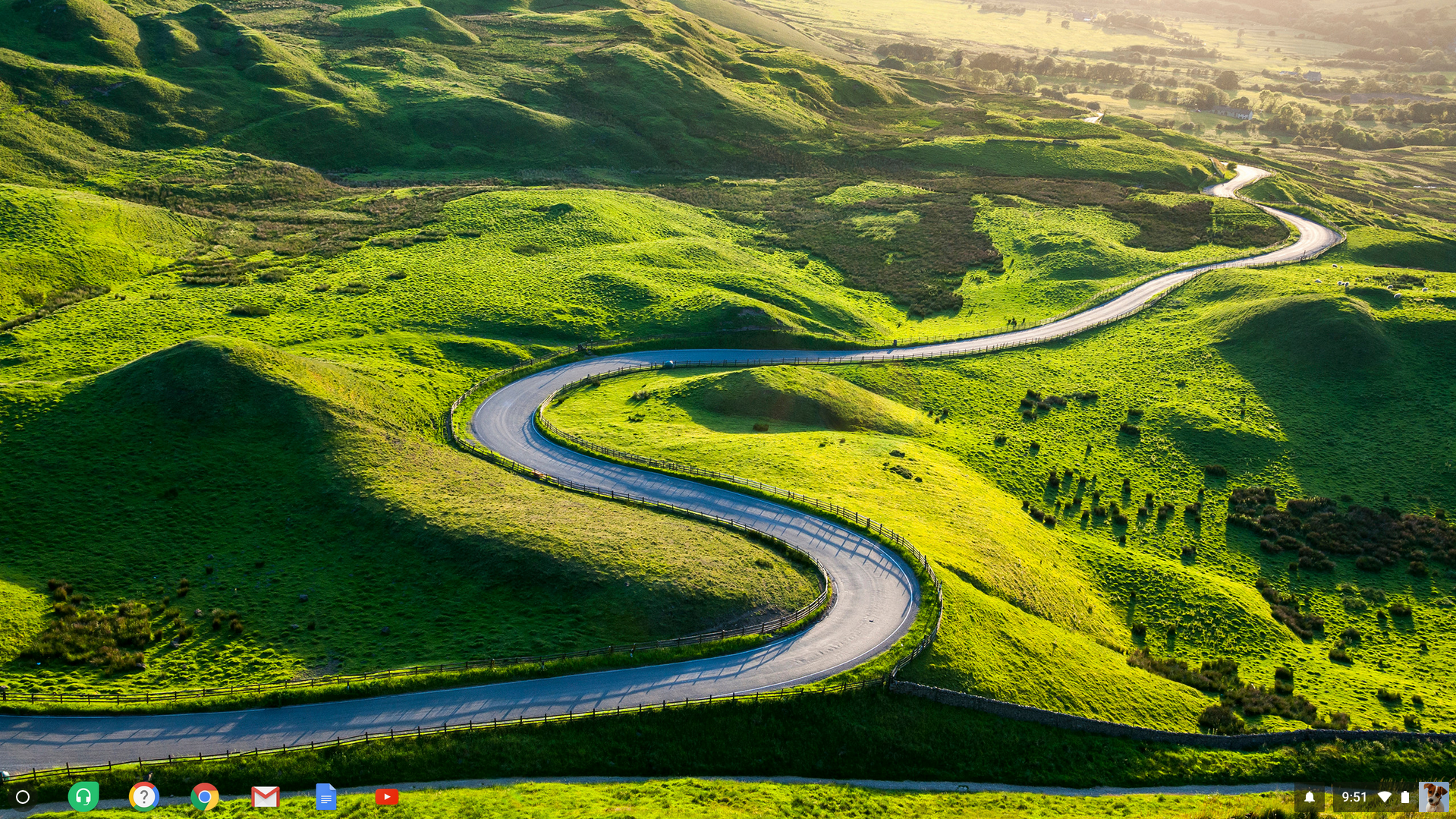
Along the bottom of the screen you will notice 7 different icons on the left side.
The First One, (Starting the far left) is the file explorer of the Chrome OS. (Equivalent to File Explorer on Windows and Finder on Mac). Here you will be able to locate and navigate to all of your files. You also can access more apps that are not on the task bar.

The second icon is the shortcut to the TechOps Helpdesk. This will open a tab in Chrome that will take you directly to the helpdesk site.
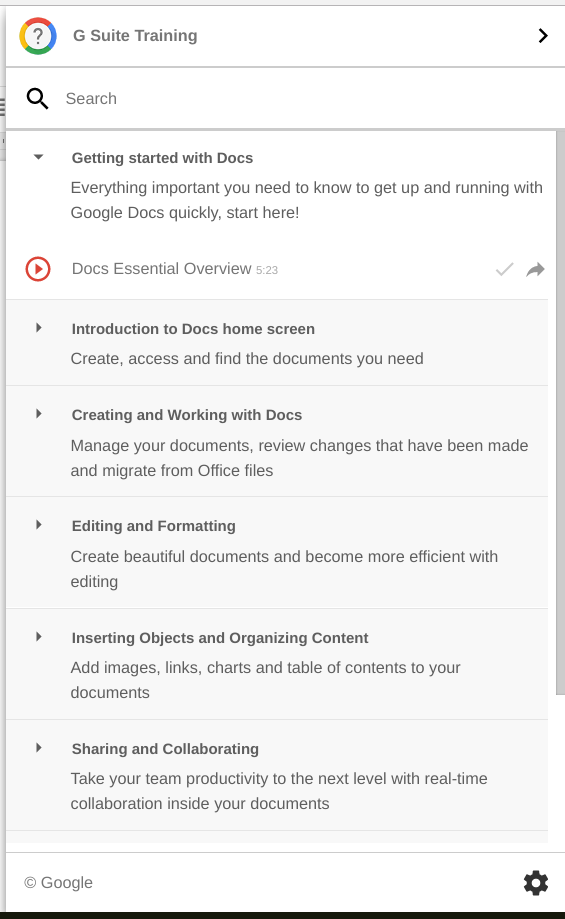
The Third icon is a shortcut to the Google Suite Tutorial site. Whenever you are signed in with your GT Google Account and on any document on Google Drive you will notice the same icon on the top right side of the page. If you click on it, it will give you a tutorial on how to use whatever tool in Google you are currently on. For example the below image is from when I had a Google Document open.

The Fourth icon is the Chrome Web Browser shortcut.
The Fifth icon is the Gmail shortcut. Right now, until we move to gmail in the near future. This is an unnecessary icon.
The Sixth icon is the Google Docs shortcut. This will take you right to a webpage with all of your Google Documents.
The Last icon is the Youtube Shortcut.
On the Far Right side of the task bar are a few other icons.

If will notice there is a battery icon. Which you can click on and find out the time remaining and the percentage on the battery.
When you are done using the Chromebook, it is important to login out, which you can do by clicking on the icon of the picture, it varies from user to user but in my case its the puppy. At the top of that popup, you will see Sign out.