
To Start:
You need to take the iPad out of Single App mode. Triple Press the Home button. A pin screen will appear. Enter the pin.
Now, close the rock app by swiping up on the app.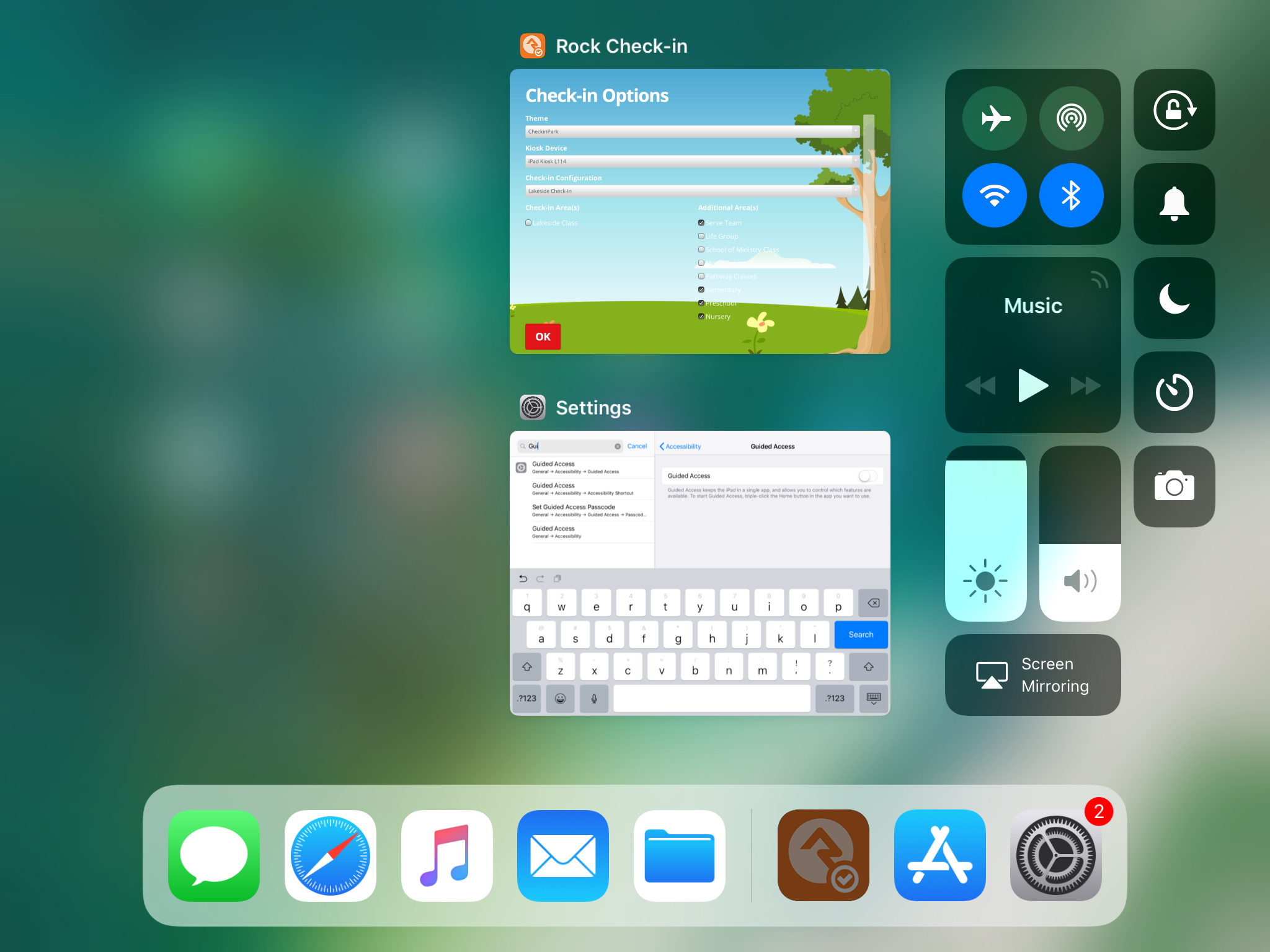
You can relaunch the rock app.
Once it opens you can now set up the checkin.
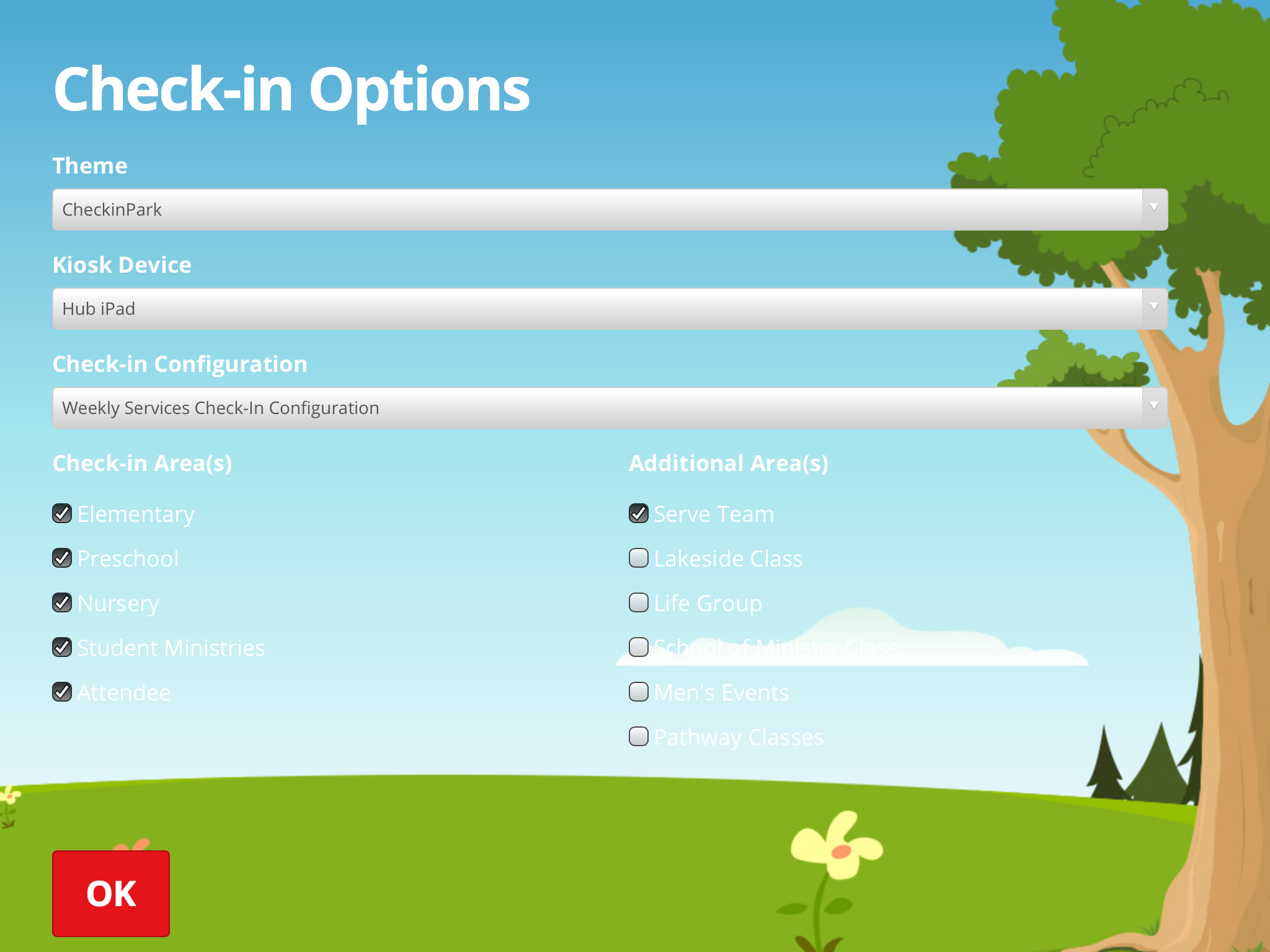
Double check taht the Kiosk Device name matches the describe/ location of the device. For example if this is at the Lakeside checkin area, you want to locate the tag on the stand of the ipad. The kiosk device name should match that. If not, change it to the correct one.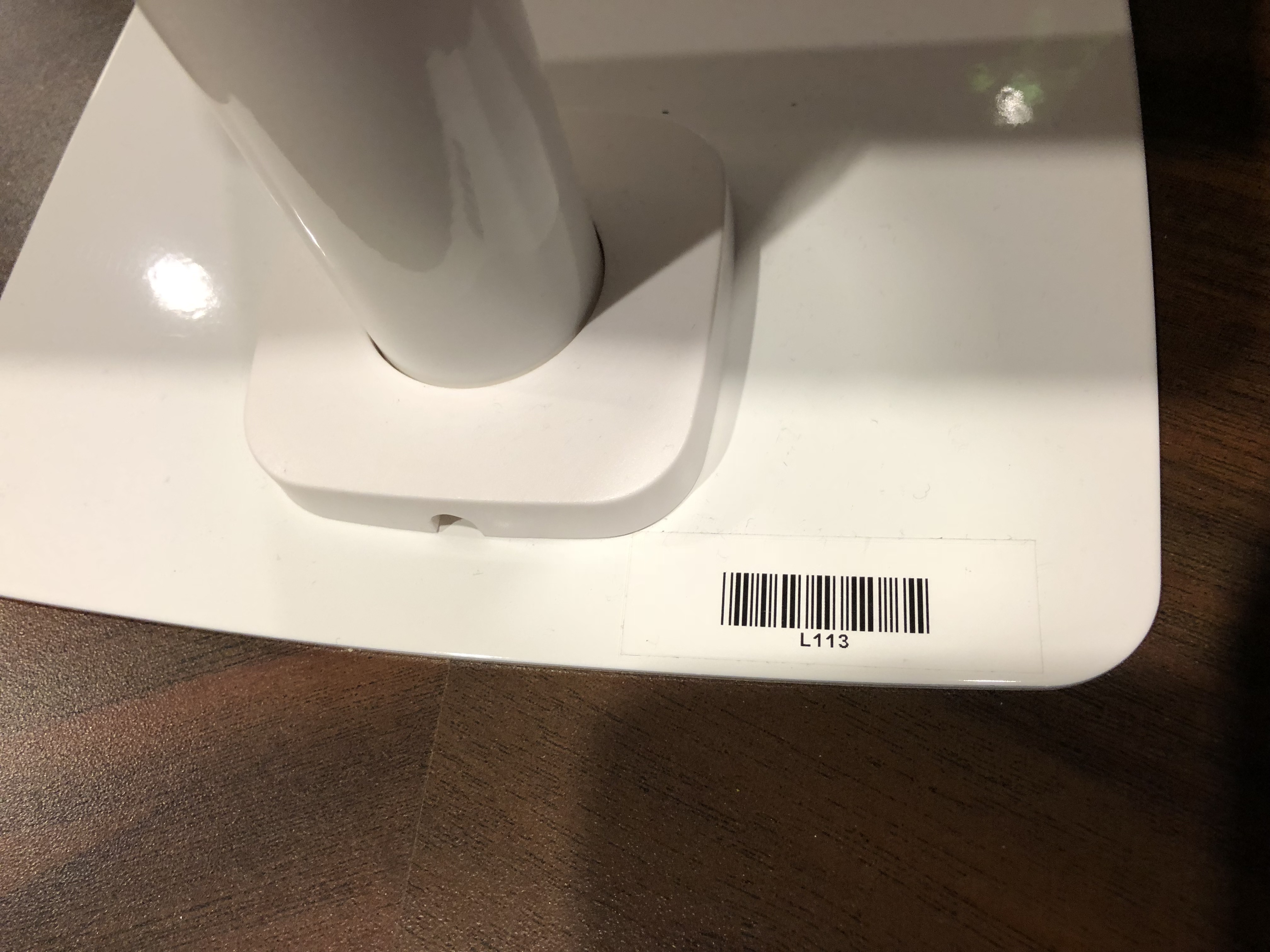
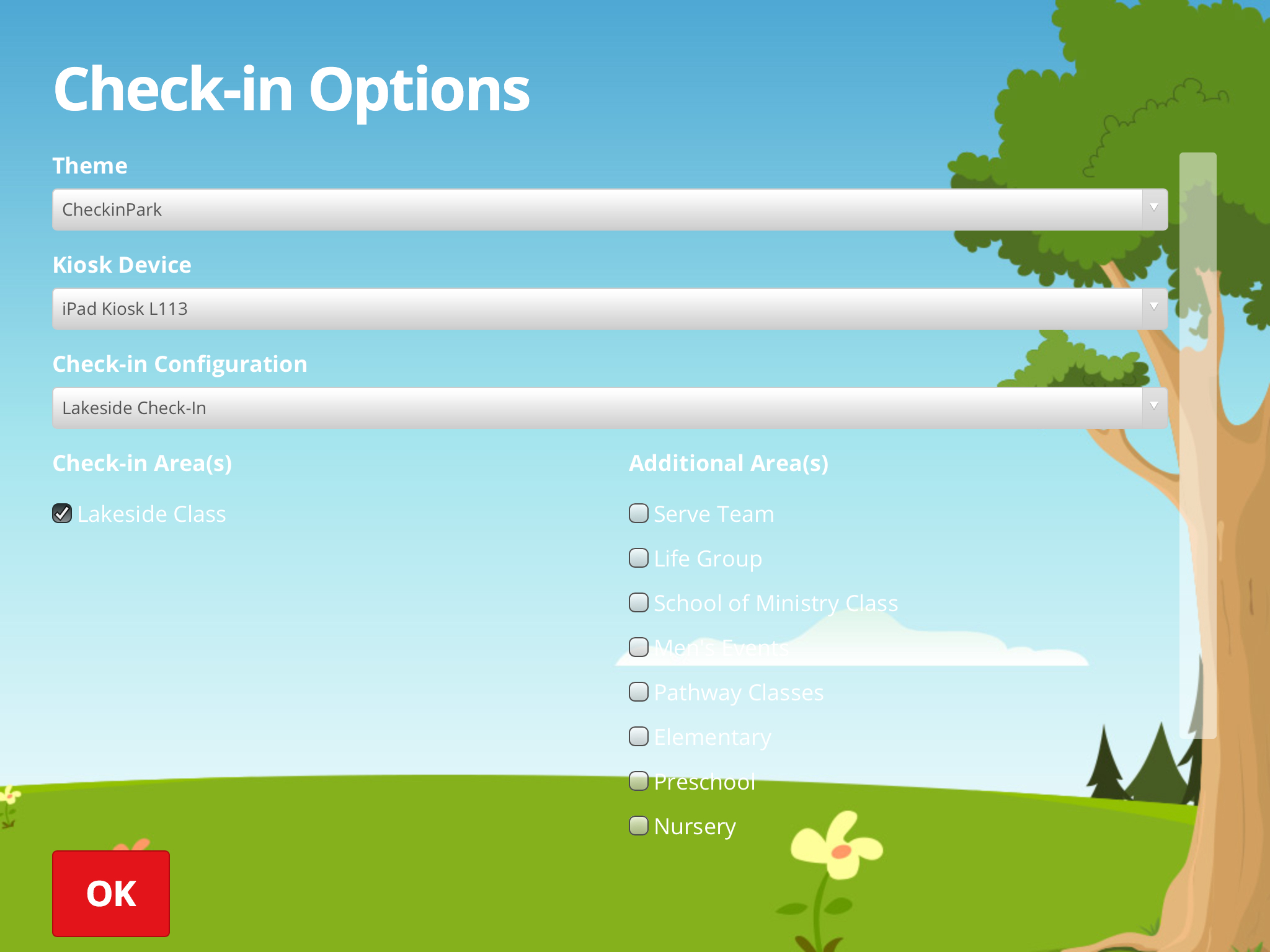
You now need to change to the correct Check-in configuration. If this is for the Sunday services, you select the "Weekly Services Check-In Configuration", if its for the Lake side checkin you change it to "Lakeside Check In".
After selecting the Checkin configuartion you need to change the check in area(s) and the Additional Area(s) to reflect correctly.
FOR WEEKLY SERVICE CHECKIN:
Check the following under 'Check-in Area(s)'
"Elementary"
"Preschool"
"Nursery"
"Student Ministries"
"Attendee"
Check the following under 'Additional Area(s)'
"Serve Team"
The Following Picture reflects the correct configuration for a Weekly Service Check in.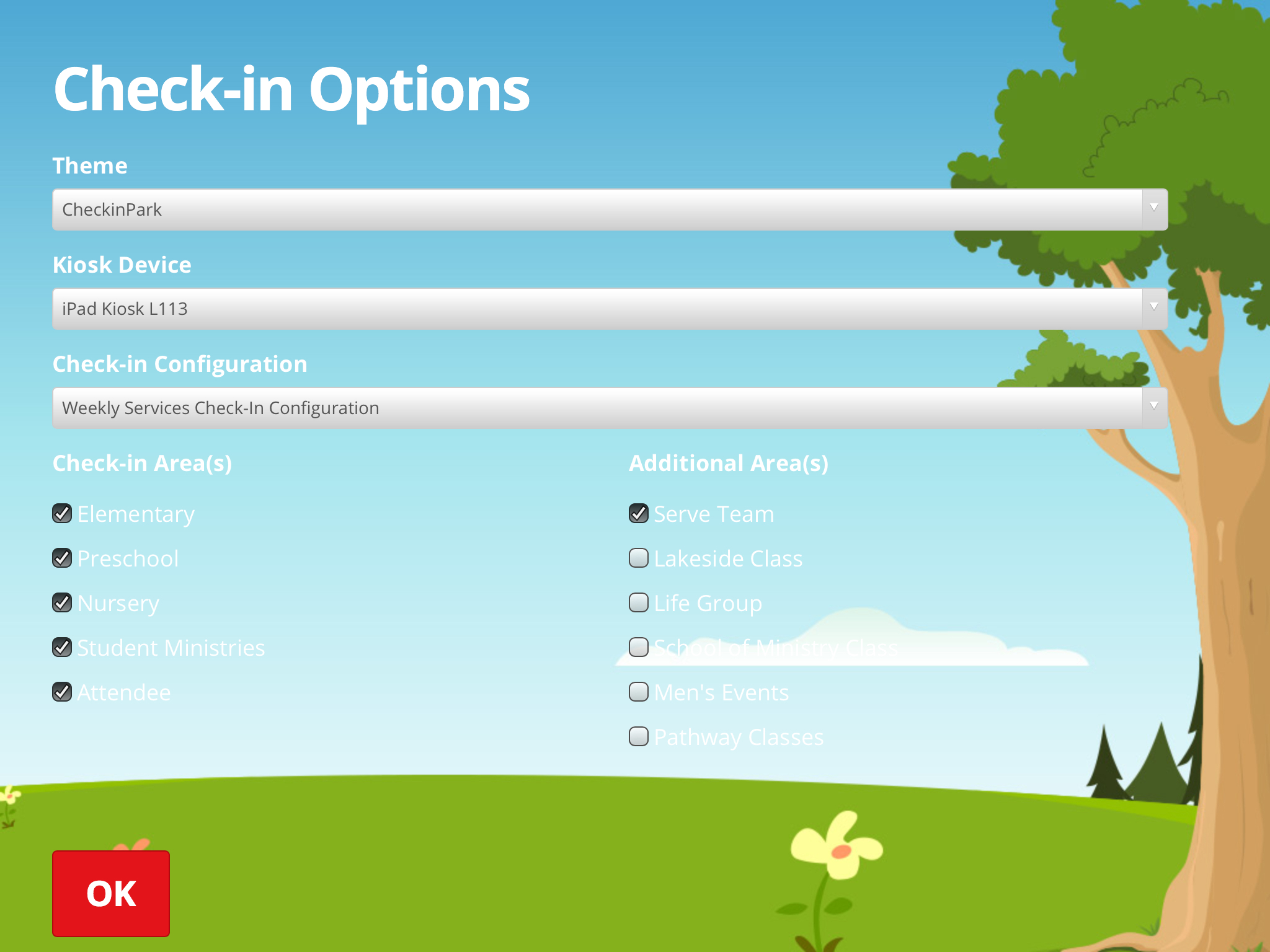
FOR LAKESIDE CHECK IN
Check the following under 'Check-in Area(s)'
"Lakeside Class"
Check to make sure the everything under 'Additional Area(s)' is unchecked.
The Following Picture reflects the correct configuration for Lakeside Check In.
LAST STEP:
Triple click again to enable guided access.