
Step 1: Sign into your Rock account at rock.gtchurch.online
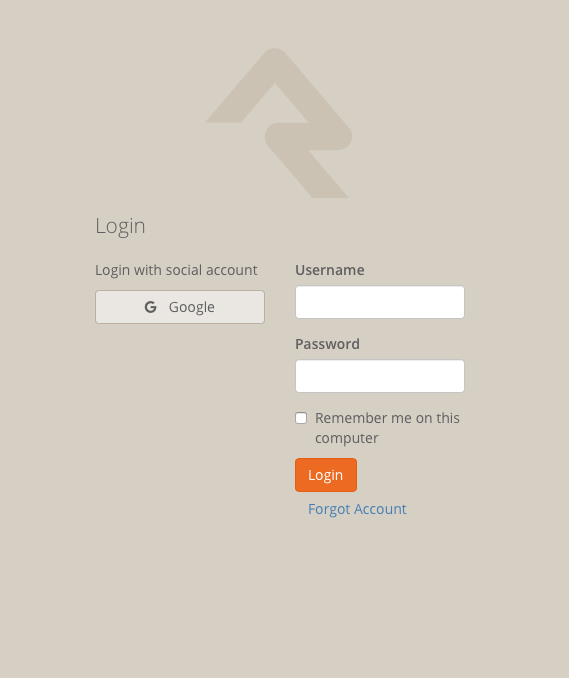
please remember to use your google account to sign into Rock. (ex: name@gtaog.org)
Step 2: Once you have logged into your Rock account look at the upper-right hand corner and left-click the "Hello your name" button. 
Once you have clicked on the button you will see a list of options for you to choose from. Please click the option that says "My Profile".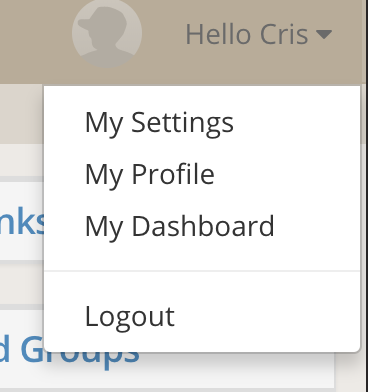
Step 3: Clicking on the "My profile" button will send you to a page that look like this.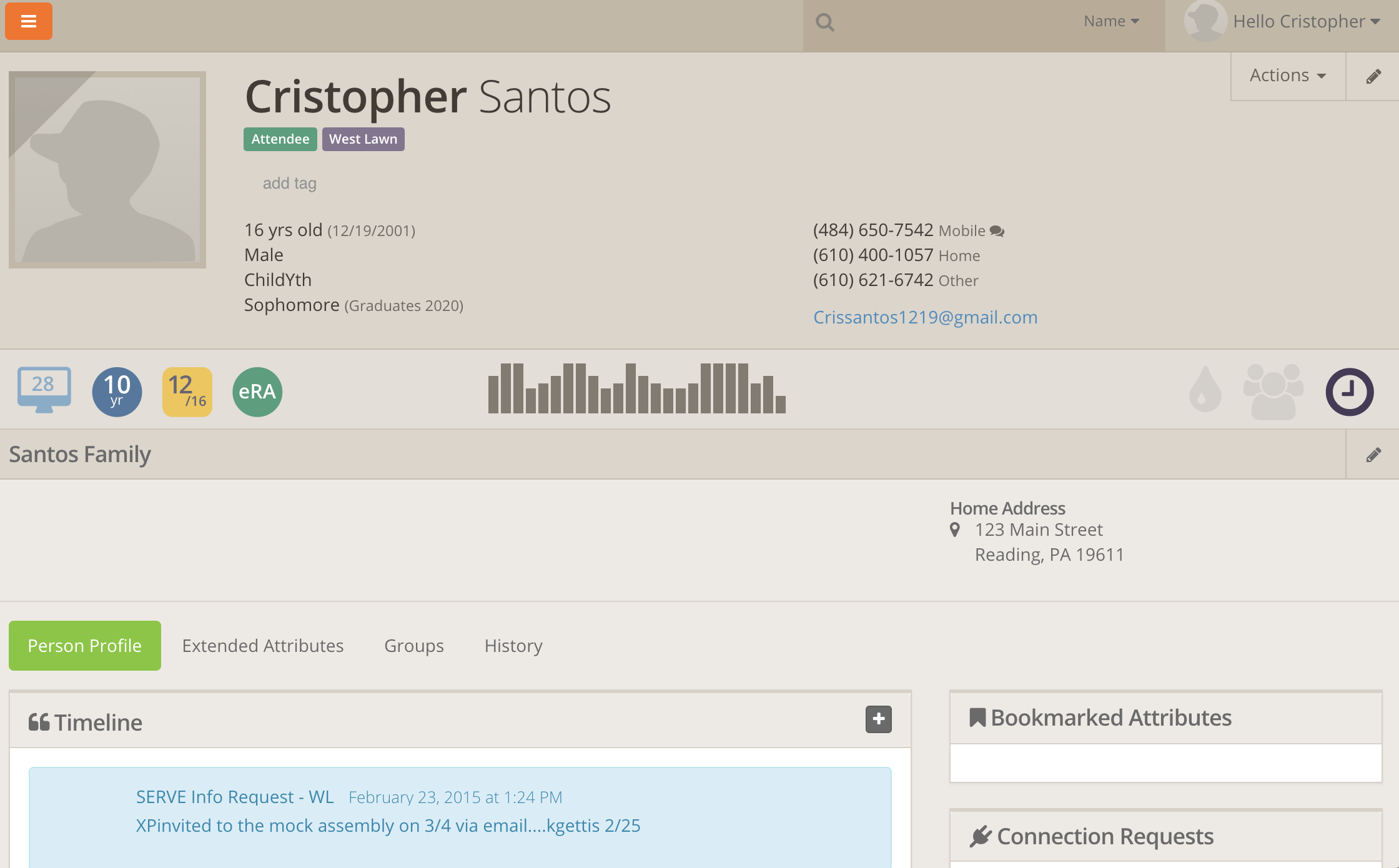
You should see this page with most of your information on it. Please look at the upper-right hand corner of the page and click the pencil icon.
Upon clicking the pencil icon it will take you to a page where you may edit your account information. It should look like this.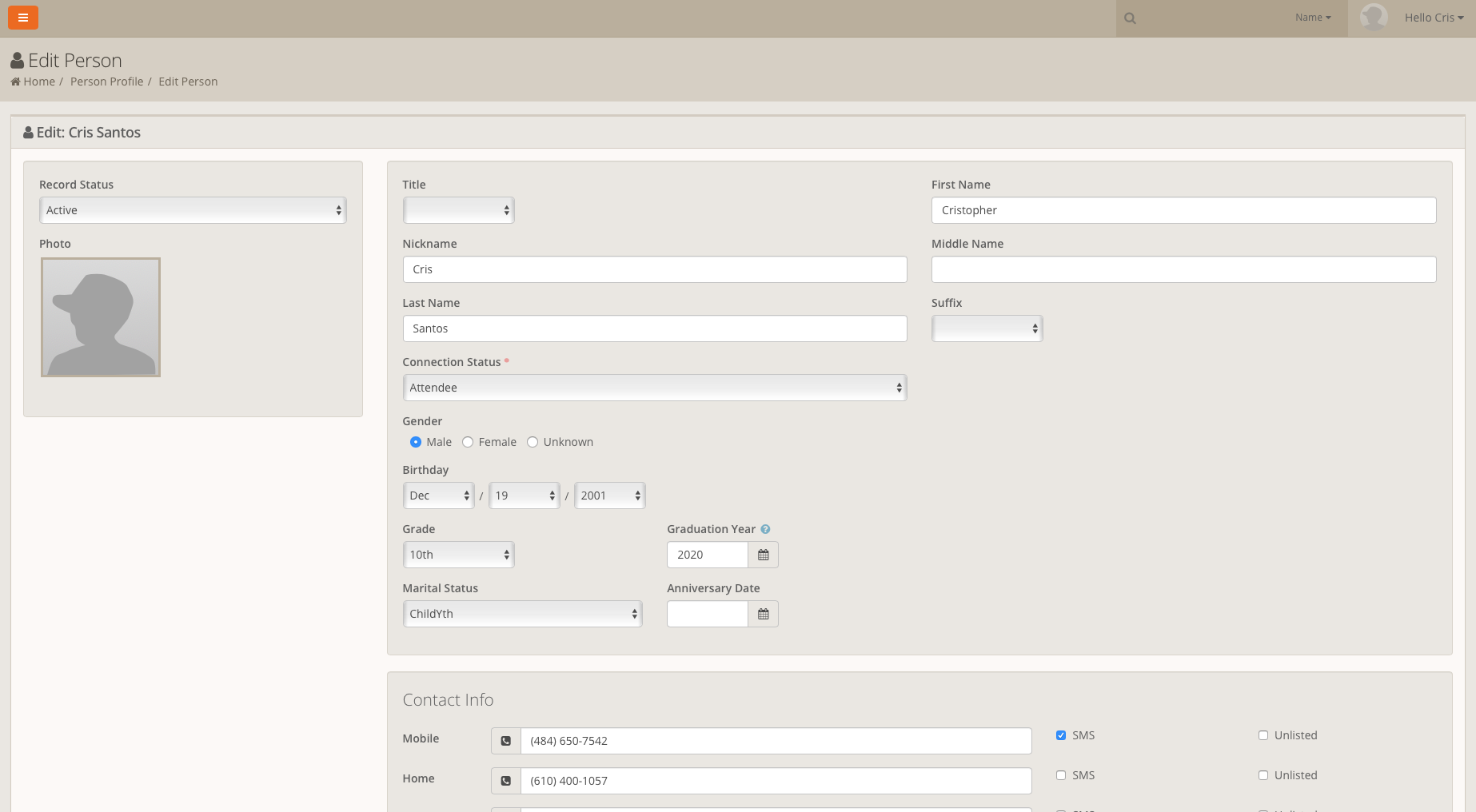
Step 4: If you look at the left side of the screen you will a "Photo" box with no photo inside of it or of an older photo you had placed there. Put the cursor over the Photo box until you see this on the photo box.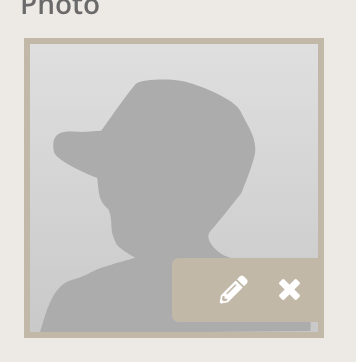
Please left-click the pencil icon in the "Photo box" and click the button.
Step 5: Once you have clicked the pencil icon a small page over the original profile page.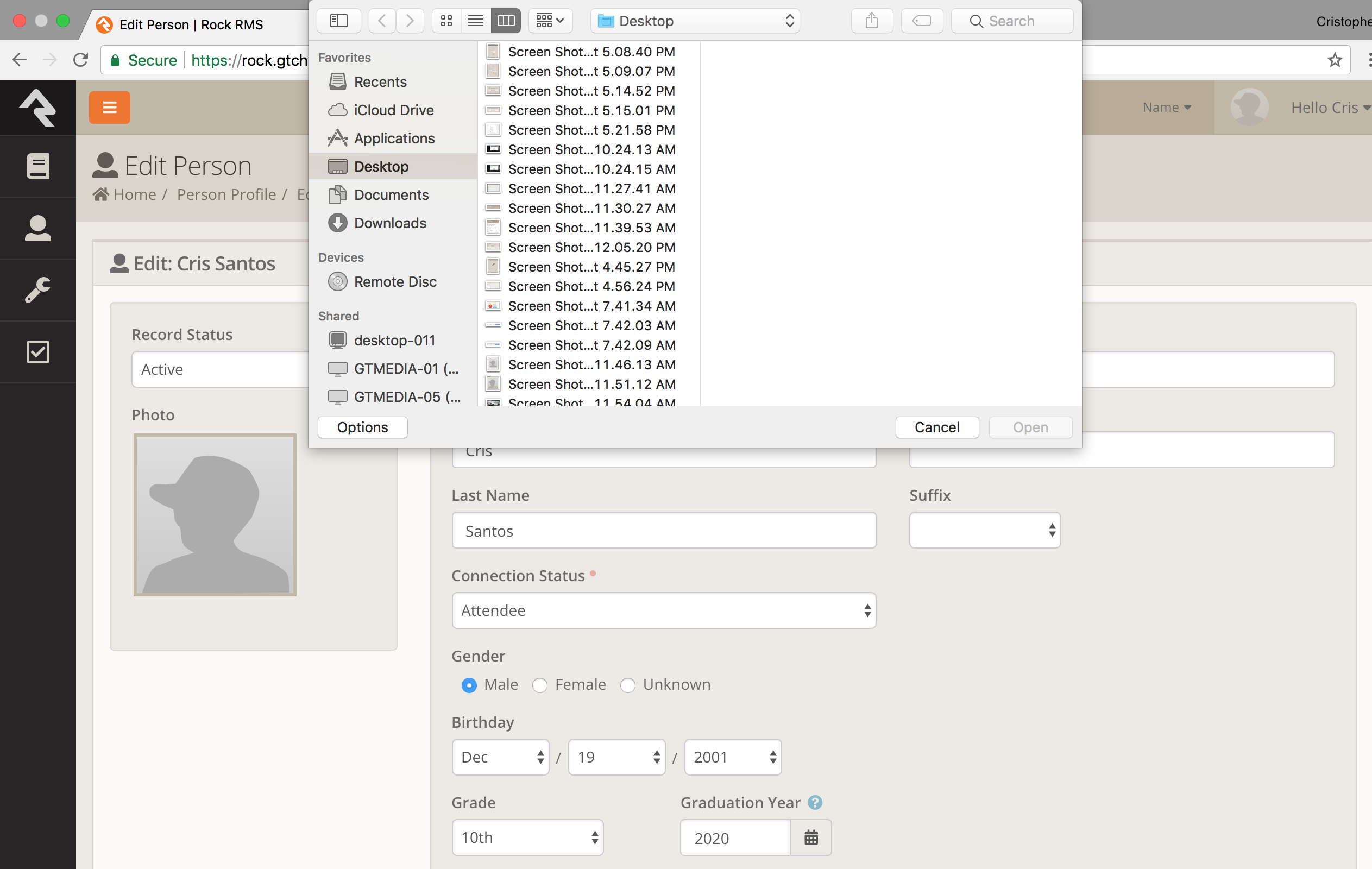
Look through each of the different files when the smaller page shows to pick your picture.
Step 6: Once you pick your photo it ask you to crop the photo.
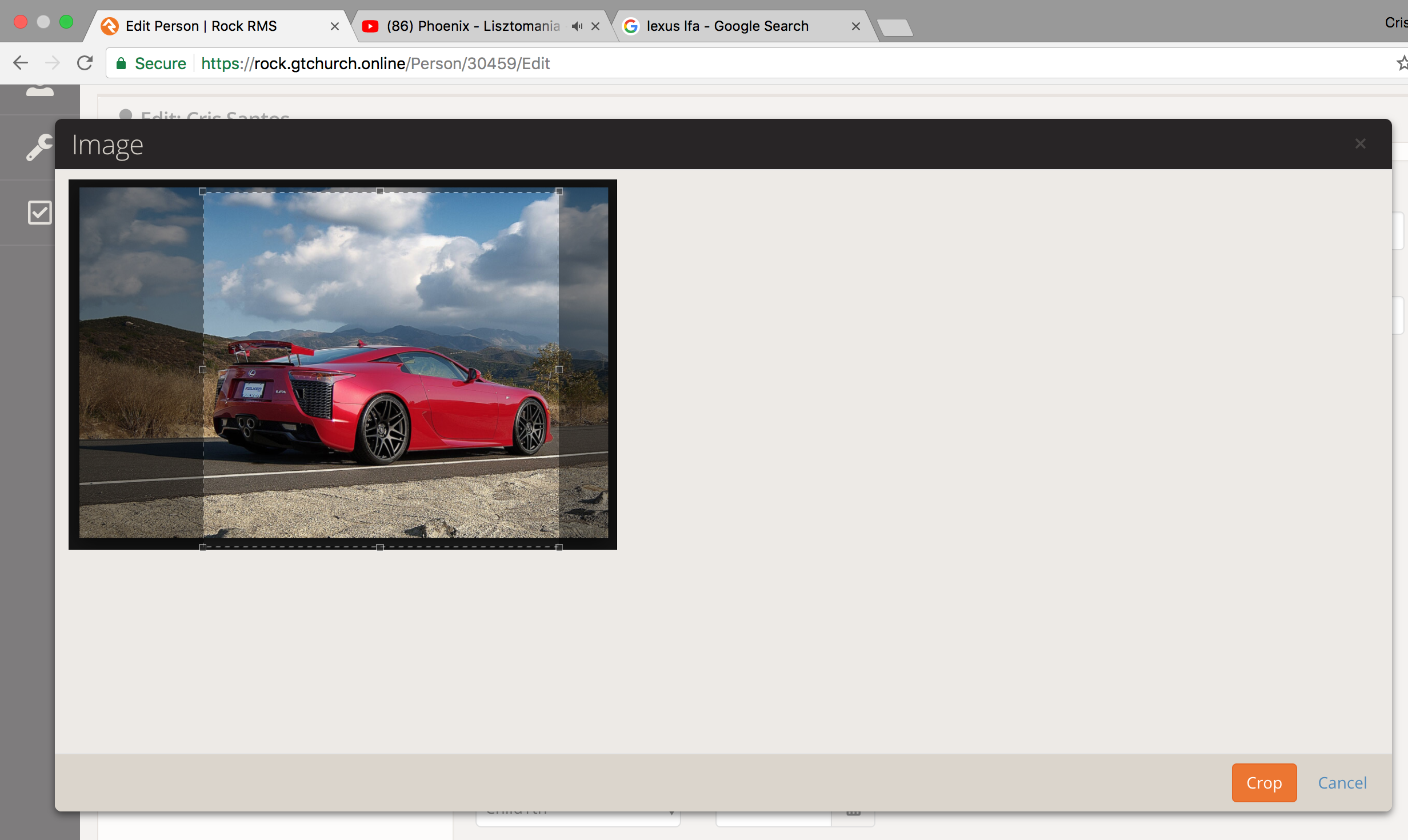 Once you are done cropping your photo to your liking please left-click the "Crop" button, it is located at the bottom right of your screen and is highlighted orange.
Step 7: Please once you have cropped your photo and pressed the "crop" button that is highlighted in orange, Please make sure to scroll to the bottom of your profile screen to press the "save" button that is also highlighted in orange.