
This article will help you understand the need for a team drive and also how to create one and add people to it.
A team drive is great when you are constantly sharing files with the same group of people. For example, if you have a prayer team of 10 people and you are sharing a new document with a list of prayer requests every week or so, this is a good time to make a team drive.
Everything in the team drive is shared with anyone added to the team drive. However, if you need to share a specific document with someone who is normally not shared in this team drive but the file is in that team drive, you can share it with that person from the team drive and they will have access to only that specific file.
1. Start by opening your browser and navigating to drive.google.com
2. Make sure that you are logged in with your GTAOG google account.
3. Once you are logged in and at drive.google.com, you can click on team drive on the left side panel.
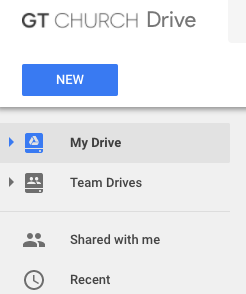
4. Click the New Button.

5. A new popup will appear and you can the name the Team drive. Try to keep the name short. For example if its for the prayer team, name it Prayer Team.
6. Click Create.
7. Now the new team drive will appear in the list of your team drives.
To share with others, click once on the team drive, then in the right top click on the person icon. 
1. A new window will appear where you can add people to the drive.
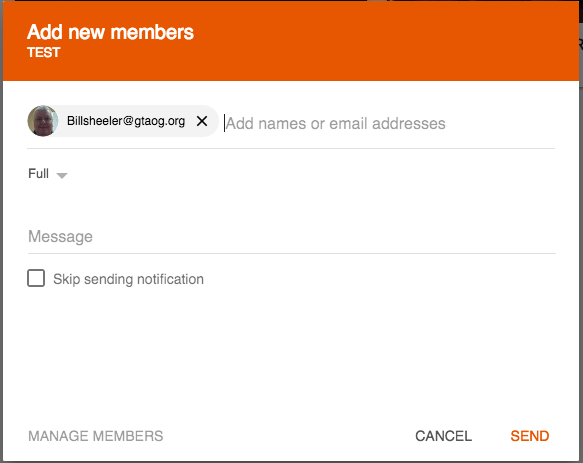
2. After entering all of the emails, you can click send.
Any issues or problems creating and sharing team drives, submit a ticket!